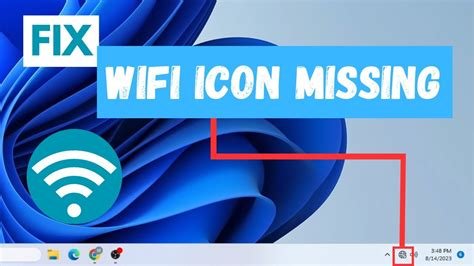
If the Windows Wi-Fi logo disappeared from the taskbar, system tray, Quick Settings, or Windows Settings, it can be difficult to reconnect to a wireless network. In some cases, the Wi-Fi connection itself is still working and only the taskbar interface has glitched. In other cases, Windows may no longer be detecting the wireless adapter at all.
The cause can range from a temporary Windows glitch to a disabled network adapter, corrupted or outdated Wi-Fi driver, stopped Windows networking service, incorrect network configuration, Airplane Mode, a recent Windows update, or even a hardware problem.
Windows 10 and Windows 11 also organize their network controls differently. Therefore, the steps for fixing a Wi-Fi icon disappeared Windows 11 problem are not always identical to those for Windows 10.
This guide starts with the simplest checks and gradually moves into advanced troubleshooting. You do not need to try every fix if an earlier step restores your Wi-Fi.
Quick Checks Before Trying Advanced Fixes
Before changing drivers, services, or network settings, check the basics. A temporary problem can sometimes make the network icon disappeared from taskbar without indicating a serious fault.
1. Restart the computer
Restart Windows normally.
A restart can clear temporary networking problems, reload the Wi-Fi driver, restart Windows services, and refresh the taskbar.
If the icon returns after restarting, you probably do not need the advanced fixes below.
2. Check Airplane Mode
Make sure Airplane Mode is turned off.
On most laptops, you can check this from Windows Quick Settings or the network settings area.
Also check your keyboard. Some laptops have a dedicated wireless key or an Fn key combination that can disable wireless communication.
The exact key varies by manufacturer.
3. Check whether Wi-Fi is enabled
If Windows still shows a Wi-Fi control, make sure Wi-Fi is turned on.
If the Wi-Fi control itself has disappeared, continue with the troubleshooting steps below.
4. Check another device
Try connecting a phone or another computer to the same router.
- If other devices connect normally, the problem is probably specific to your Windows PC.
- If multiple devices cannot connect, the router or internet connection may be the actual problem.
5. Check physical wireless controls
Some older laptops have a physical wireless switch.
Others use a keyboard shortcut such as Fn plus one of the function keys.
Look for a key marked with a wireless antenna or airplane symbol.
6. Check Ethernet
If an Ethernet cable is connected, Windows may display an Ethernet/network symbol instead of a Wi-Fi symbol.
This does not necessarily mean the Wi-Fi adapter is broken.
Fix 1: Check Windows Quick Settings and the Taskbar
The first thing to determine is whether the Wi-Fi controls are simply hidden or whether Windows has stopped detecting Wi-Fi.
Windows 11
Windows 11 combines several controls into the Quick Settings area.
- Click the network, volume, or battery area on the right side of the taskbar.
- Look for the Wi-Fi control.
- Click the Wi-Fi control to expand it if necessary.
- Check whether available wireless networks appear.
- If Wi-Fi is turned off, enable it.
If the network control itself is missing or Windows does not show a Wi-Fi option, continue to the next fixes.
Windows 10
- Look at the notification area on the right side of the taskbar.
- Select the Network icon.
- Check whether Wi-Fi networks are displayed.
- If Wi-Fi is disabled, turn it on.
- You can also open Action Center and check the Wi-Fi quick action.
If there is no Wi-Fi icon on Windows taskbar, that does not automatically mean the adapter has failed. Windows may simply have a taskbar or Explorer problem.
Fix 2: Check Wi-Fi Settings
Windows Settings can tell you whether the operating system still recognizes Wi-Fi functionality.
Windows 11
- Press Windows + I to open Settings.
- Select Network & internet.
- Look for Wi-Fi.
- Select Wi-Fi and check whether wireless networks are available.
If Wi-Fi is listed, Windows is probably detecting the wireless functionality. The problem may be related to the taskbar, configuration, or connection.
If Wi-Fi is completely absent, continue to Device Manager and driver troubleshooting.
Windows 10
- Press Windows + I.
- Open Network & Internet.
- Select Wi-Fi from the left-hand menu.
- Check whether Wi-Fi is available and enabled.
If Windows cannot find a Wi-Fi option at all, that is more significant than merely having a missing taskbar icon.
It can indicate a disabled adapter, missing driver, stopped networking service, BIOS/UEFI setting, or hardware problem.
Fix 3: Restart Windows Explorer
If Wi-Fi works but the taskbar or system-tray network icon has disappeared, restarting Windows Explorer can help.
Windows Explorer is responsible for much of the Windows desktop interface, including the taskbar and notification area.
Steps
- Press Ctrl + Shift + Esc to open Task Manager.
- If Task Manager opens in a simplified view, select More details.
- Find Windows Explorer in the process list.
- Right-click Windows Explorer.
- Select Restart.
- Wait a few seconds while the taskbar disappears and reloads.
Check the taskbar again.
This fix is particularly useful when the underlying network connection is functioning but the network icon not showing is caused by a temporary Windows shell problem.
Fix 4: Check the Network Adapter in Device Manager
Device Manager is one of the most important places to check when the Wi-Fi option disappeared Windows users are experiencing.
It shows hardware devices that Windows currently recognizes and the drivers associated with them.
Open Device Manager
- Right-click the Start button.
- Select Device Manager.
- Expand Network adapters.
You may see several adapters, including Ethernet, Wi-Fi, Bluetooth-related networking components, and virtual adapters.
Identify the wireless adapter
The Wi-Fi adapter may have a name containing terms such as:
- Wireless
- Wi-Fi
- WLAN
- 802.11
- Intel Wireless
- Realtek Wireless
- MediaTek Wireless
- Qualcomm Wireless
- Broadcom Wireless
The exact name depends on your computer.
Check whether it is disabled
If the wireless adapter has a small downward-arrow indicator or otherwise appears disabled:
- Right-click the adapter.
- Select Enable device.
- Wait a few seconds.
- Check Windows Settings and the taskbar again.
What if there is a yellow warning symbol?
A yellow warning symbol generally means Windows has detected a problem with the device or its driver.
Right-click the adapter and select Properties.
The Device status section may provide an error code or explanation.
Do not assume that reinstalling Windows is necessary simply because Device Manager displays a warning. Driver and device configuration problems are much more common explanations.
Fix 5: Update or Reinstall the Wi-Fi Driver
A driver is software that allows Windows to communicate with a hardware device.
If the wireless driver becomes corrupted, incompatible, outdated, or incorrectly installed, Wi-Fi may disappear.
Option 1: Update the driver
- Open Device Manager.
- Expand Network adapters.
- Right-click your wireless adapter.
- Select Update driver.
- Choose the available automatic driver-search option.
- Follow the instructions shown by Windows.
If Windows reports that the best available driver is already installed, that does not necessarily mean the installed driver is perfect. Windows may not have the latest driver available from your computer manufacturer.
Option 2: Reinstall the driver
If the adapter is visible but behaving incorrectly:
- Open Device Manager.
- Expand Network adapters.
- Right-click the Wi-Fi adapter.
- Select Uninstall device.
- Follow the confirmation prompt.
- Restart the computer.
Depending on Windows and the driver, Windows may automatically reinstall the device after restarting.
Important driver warning
If Windows cannot automatically restore the driver, download the appropriate Wi-Fi driver from your laptop manufacturer’s or motherboard manufacturer’s official support website.
For example, use the official support page for the manufacturer and exact model of your computer.
Avoid random “driver download” websites. Installing the wrong network driver can make troubleshooting more difficult and introduces unnecessary security risks.
What if the Wi-Fi adapter disappears completely?
If the adapter does not appear under Network adapters, first check View > Show hidden devices in Device Manager.
If it still does not appear, do not repeatedly uninstall unrelated network devices. Move to the dedicated troubleshooting section later in this article.
Fix 6: Restart Important Windows Network Services
Windows relies on background services to manage wireless networks and network connections.
A problem with one of these services can contribute to a missing or nonfunctional Wi-Fi interface.
Open Services
- Press Windows + R.
- Type:
services.msc- Press Enter.
- Locate the relevant services.
Pay particular attention to:
- WLAN AutoConfig
- Network Connections
- Network List Service
- Network Location Awareness
Service names and behavior can vary somewhat between Windows versions and configurations.
Check WLAN AutoConfig
WLAN AutoConfig is especially important for Wi-Fi functionality.
- Find WLAN AutoConfig.
- Double-click it.
- Check its status.
- If it is stopped, select Start.
- If it is already running, you can select Restart where available.
- Check its startup type as well.
Do not randomly change startup types for Windows services you do not understand. A service can be running correctly even if changing its configuration seems tempting.
After restarting the service, check whether the Wi-Fi option returns.
Fix 7: Run the Windows Network Troubleshooter
Windows includes built-in troubleshooting tools that can detect some common network configuration problems.
Windows 11
- Open Settings.
- Select System.
- Select Troubleshoot.
- Open Other troubleshooters.
- Look for the available network or internet-related troubleshooter.
- Run it and follow the recommendations Windows provides.
Windows 11’s troubleshooting interface has changed over time, so the exact available troubleshooter can depend on the version and installed updates.
Windows 10
- Open Settings.
- Select Update & Security.
- Select Troubleshoot.
- Open the available additional troubleshooters.
- Run the Internet Connections, Network Adapter, or other applicable network troubleshooter.
What can the troubleshooter fix?
It can identify certain common configuration and connectivity problems.
However, it cannot fix every problem.
For example, if the physical Wi-Fi hardware has failed or Windows has no usable driver for the adapter, the troubleshooter may simply report that it cannot identify or resolve the problem.
Fix 8: Reset Network Settings
A network reset can resolve problems caused by corrupted or inconsistent network configuration.
It should not be your first step because it changes network configuration and reinstalls network adapters.
Windows 11
- Open Settings.
- Select Network & internet.
- Select Advanced network settings.
- Select Network reset.
- Review the information displayed.
- Select Reset now if you are ready to proceed.
- Restart Windows when prompted or required.
Windows 10
- Open Settings.
- Select Network & Internet.
- Select Status.
- Select Network reset.
- Review the warning.
- Select Reset now.
- Restart the computer.
What does Network Reset do?
Network Reset removes and reinstalls network adapters and returns certain networking settings to their defaults.
Afterward, you may need to:
- Reconnect to your Wi-Fi network.
- Re-enter your Wi-Fi password.
- Reconfigure VPN software.
- Reconfigure certain virtual network adapters.
- Reconfigure other custom networking settings.
Warning: Network Reset is not simply a harmless toggle. Use it when ordinary troubleshooting has not resolved the problem.
Fix 9: Use Command Prompt to Reset the Network Stack
If Windows networking is behaving strangely, several built-in commands can refresh parts of the network configuration.
Open Command Prompt as administrator:
- Open Start.
- Type Command Prompt.
- Right-click it.
- Select Run as administrator.
Then use the following commands individually.
Release the current IP address
ipconfig /releaseThis releases the IP configuration currently assigned to the network adapters.
Request a new IP address
ipconfig /renewThis asks the DHCP server, usually your router, for a new IP configuration.
Clear the DNS cache
ipconfig /flushdnsThis clears locally cached DNS information.
Reset Winsock
netsh winsock resetWinsock is a Windows networking interface used by applications to communicate over networks.
Reset TCP/IP
netsh int ip resetThis resets parts of the Windows TCP/IP networking configuration.
After using the reset commands, restart the computer.
You do not necessarily need to run every command every time. For a missing Wi-Fi icon, commands such as ipconfig /release and ipconfig /renew will not repair a physically missing adapter or a missing driver. They are more relevant when the adapter exists but networking is malfunctioning.
Fix 10: Check Windows Updates
Windows updates can include networking components and hardware drivers. Occasionally, a driver or compatibility problem can appear after an update.
Windows 11
- Open Settings.
- Select Windows Update.
- Select Check for updates.
- Install applicable updates.
- Restart the computer if required.
Also check Advanced options and Optional updates where available, particularly if Windows offers a driver update relevant to your hardware.
Windows 10
- Open Settings.
- Select Update & Security.
- Select Windows Update.
- Select Check for updates.
- Install appropriate updates.
- Restart the PC if necessary.
If the Wi-Fi problem started immediately after an update, driver rollback may be more relevant than simply installing additional updates.
Fix 11: Roll Back a Problematic Wi-Fi Driver
If Wi-Fi worked correctly before a driver update and stopped working afterward, Roll Back Driver may be useful.
Steps
- Open Device Manager.
- Expand Network adapters.
- Right-click your wireless adapter.
- Select Properties.
- Open the Driver tab.
- Select Roll Back Driver, if the option is available.
- Follow the instructions.
- Restart the computer.
The rollback option may be unavailable if Windows does not have a previous driver available.
Do not roll back a driver simply because it is old. This approach makes the most sense when there is a clear connection between a recent driver change and the Wi-Fi problem.
Fix 12: Check BIOS/UEFI or Hardware-Level Wi-Fi Settings
This is an advanced step and should be approached carefully.
Some computers allow wireless hardware to be enabled or disabled through BIOS/UEFI firmware. BIOS/UEFI is the firmware interface that initializes and controls hardware before Windows fully loads.
If the wireless device is disabled there, Windows may not detect it normally.
General approach
- Restart the computer.
- Enter the BIOS/UEFI setup using the manufacturer’s specified key or procedure.
- Look for wireless, WLAN, onboard devices, or similar hardware settings.
- Check whether wireless functionality is disabled.
- If you make a change, save it and restart.
Do not assume that every BIOS/UEFI has the same menus or settings. Manufacturer interfaces vary significantly.
If you are uncomfortable changing firmware settings, consult the computer manufacturer’s documentation instead of changing unrelated options.
Fix 13: Check for Hardware Problems
Sometimes a missing Wi-Fi icon is actually a hardware problem.
Possible warning signs include:
- The Wi-Fi adapter is completely absent from Device Manager.
- Wi-Fi stopped working after the laptop was dropped or physically damaged.
- Wi-Fi and Bluetooth disappear at the same time on a laptop that uses a combined wireless module.
- Wi-Fi works intermittently and then disappears.
- Windows repeatedly fails to install the correct driver.
- The adapter appears and disappears from Device Manager.
- The computer manufacturer reports a hardware diagnostic failure.
Hardware faults can involve the internal wireless card, motherboard, antenna connections, or other components.
If software troubleshooting cannot make Windows detect the device, continuing to repeatedly reset network settings is unlikely to solve a physical failure.
What to Do If the Wi-Fi Adapter Is Completely Missing
If Wi-Fi adapter not showing is the main problem, follow this sequence rather than randomly changing settings.
1. Check Device Manager
Open Device Manager > Network adapters.
Look for the wireless adapter.
2. Show hidden devices
In Device Manager:
- Select View.
- Select Show hidden devices.
- Check Network adapters again.
A grayed-out wireless adapter may indicate that Windows has information about the device but it is not currently detected or active.
3. Check for unknown devices
Look under Other devices for an unknown network controller or device with a warning symbol.
This can indicate that Windows recognizes the hardware but lacks the appropriate driver.
4. Install the manufacturer’s driver
Use another device if necessary to download the correct driver from the official laptop or motherboard manufacturer’s support page.
Transfer the driver installer to the affected computer using a USB drive and install it.
5. Check Windows Update
Install applicable Windows updates and optional driver updates.
6. Check the manufacturer’s support page
Search using the exact computer model, not just the manufacturer’s name.
For example, a manufacturer may have several versions of a laptop with different wireless hardware.
7. Check BIOS/UEFI
Verify that onboard wireless hardware has not been disabled at the firmware level.
8. Run hardware diagnostics
If your manufacturer provides built-in or downloadable hardware diagnostics, run the wireless/network hardware test.
If the wireless adapter remains completely undetected, hardware service may be necessary.
Windows 11 vs Windows 10 Differences
The underlying troubleshooting concepts are similar, but the Settings layout differs.
| Task | Windows 11 | Windows 10 |
|---|---|---|
| Open Settings | Settings > Network & internet | Settings > Network & Internet |
| Wi-Fi settings | Network & internet > Wi-Fi | Network & Internet > Wi-Fi |
| Network reset | Network & internet > Advanced network settings > Network reset | Network & Internet > Status > Network reset |
| Windows Update | Settings > Windows Update | Settings > Update & Security > Windows Update |
| Troubleshooting | Settings > System > Troubleshoot > Other troubleshooters | Settings > Update & Security > Troubleshoot |
| Quick network controls | Quick Settings from the taskbar | Taskbar network icon / Action Center |
| Device Manager | Start menu / Power User menu | Start menu / Power User menu |
| Services | services.msc | services.msc |
Microsoft has changed parts of the Windows interface through feature updates, so a particular screen may look slightly different depending on your Windows version.
Common Reasons the Wi-Fi Icon Disappears
The Windows Wi-Fi logo disappeared problem does not have one universal cause.
Common possibilities include:
Disabled Wi-Fi adapter
The wireless adapter may have been disabled accidentally through Windows, a keyboard shortcut, or another configuration.
Corrupted or outdated driver
A damaged or incompatible driver can prevent Windows from using the wireless hardware correctly.
WLAN AutoConfig problem
The Windows service responsible for managing WLAN connections may have stopped or malfunctioned.
Windows Explorer glitch
The actual Wi-Fi connection can remain functional while the taskbar or system-tray interface fails to display the network control.
Corrupted network configuration
Incorrect or damaged networking settings can interfere with Wi-Fi functionality.
Recent Windows update
A Windows or driver update can occasionally introduce a compatibility issue with particular hardware.
Airplane Mode
Airplane Mode can disable wireless communications and make users think the Wi-Fi hardware has disappeared.
Hardware failure
A failing wireless adapter can cause Wi-Fi to disappear entirely, especially when the device is also missing from Device Manager.
When You Should Contact a Professional
Normal software troubleshooting is reasonable when the adapter appears in Device Manager and Windows reports a driver or configuration problem.
Consider professional assistance when:
- The Wi-Fi adapter is completely absent from Device Manager.
- BIOS/UEFI does not detect or expose the wireless hardware.
- Wi-Fi and Bluetooth disappear together unexpectedly.
- The problem began after physical damage.
- The adapter repeatedly disconnects or disappears.
- Manufacturer diagnostics report a hardware failure.
- Driver installation consistently fails despite using the correct official driver.
- You have already reset networking and reinstalled the correct driver without improvement.
For a desktop PC, also check whether the computer actually has Wi-Fi hardware. Some desktop motherboards do not include wireless networking at all.
Frequently Asked Questions
Why did my Wi-Fi icon disappear from Windows 11?
The Wi-Fi icon disappeared Windows 11 problem can be caused by a temporary taskbar glitch, disabled Wi-Fi adapter, driver problem, WLAN AutoConfig issue, network configuration problem, Airplane Mode, Windows update, or hardware failure.
Start by checking Quick Settings and Settings, then inspect the adapter in Device Manager.
How do I get the Wi-Fi icon back on my taskbar?
First check whether Wi-Fi is still available under Settings > Network & internet > Wi-Fi. If Wi-Fi works but the taskbar icon is missing, restart Windows Explorer from Task Manager.
If Wi-Fi itself is unavailable, investigate the adapter, driver, and network services instead.
Why is there no Wi-Fi option in Windows Settings?
If Windows cannot find the Wi-Fi option at all, it may not be detecting or correctly managing the wireless adapter.
Check Device Manager > Network adapters, enable the adapter if disabled, and verify that the correct driver is installed.
How do I enable Wi-Fi in Windows?
On Windows 11, open the taskbar’s Quick Settings and enable Wi-Fi, or go to Settings > Network & internet > Wi-Fi.
On Windows 10, open Settings > Network & Internet > Wi-Fi or use the taskbar’s network controls.
If no Wi-Fi control exists, troubleshoot the adapter and driver.
Why is my Wi-Fi adapter missing from Device Manager?
Possible causes include a missing driver, disabled hardware, hidden device, BIOS/UEFI configuration, Windows detection problem, or hardware failure.
Enable View > Show hidden devices, look for an unknown network controller, install the manufacturer’s official driver, and check BIOS/UEFI if necessary.
Can restarting Windows Explorer fix the missing network icon?
Yes, it can when the underlying network functionality is working but the taskbar or system-tray interface has temporarily malfunctioned.
Restarting Windows Explorer reloads the Windows desktop shell without requiring a full system restart.
Does Network Reset delete my Wi-Fi password?
Network Reset can remove network configuration and require you to reconnect to wireless networks. You should be prepared to enter your Wi-Fi password again.
It can also affect VPNs and other custom network configurations.
How do I reinstall a Wi-Fi driver?
Open Device Manager, expand Network adapters, right-click the wireless adapter, and select Uninstall device. Restart Windows and allow Windows to reinstall the driver if it can.
If Windows does not restore it, install the correct driver downloaded from your laptop or motherboard manufacturer’s official support page.
Why did Wi-Fi disappear after a Windows update?
An update can sometimes coincide with a driver or compatibility problem. Check Device Manager and the Wi-Fi adapter’s driver information.
If the issue began immediately after a driver change and Roll Back Driver is available, rolling back the driver may help.
When is a missing Wi-Fi adapter a hardware problem?
Hardware becomes more likely when the adapter remains completely absent from Device Manager, disappears together with Bluetooth on a combined wireless module, stopped working after physical damage, or repeatedly fails manufacturer hardware diagnostics and driver installation.
Conclusion
When the Windows Wi-Fi logo disappeared, do not immediately assume that the wireless hardware has failed. Start by checking Airplane Mode, Quick Settings, Wi-Fi Settings, and the physical wireless controls.
If the network icon alone is missing, restarting Windows Explorer may be enough. If the Wi-Fi option itself is gone, check Device Manager, the wireless driver, and WLAN AutoConfig. More persistent problems may require network reset, network-stack commands, driver rollback, Windows Update troubleshooting, or BIOS/UEFI inspection.
The most important diagnostic question is whether Windows can still detect the Wi-Fi adapter. If the adapter appears in Device Manager, software and configuration troubleshooting can usually continue. If it is completely absent even after checking hidden devices, installing the correct manufacturer driver, Windows Update, and firmware settings, hardware diagnostics or professional service may be the appropriate next step.
Leave a Reply